Turn a prompt or a still image into a 1080p video with synchronized sound. Make room for a short sequence with up to 30 seconds per generated clip.
1 / 3
View prompt
Ten-second film in a practical miniature studio. A slim rectangle of afternoon light travels down an amber resin city block as a hand pushes a small black flagged slider past the lens. Open close on the light hitting a rain-textured glass roof. Pull back slowly to reveal the tiny street and the golden light spilling along it. Leave the miniature rain reflections in the foreground as the movement stops. The hand leaves frame. Texture-rich photographic scene, ivory wall behind the build, quiet soft roller sound.
What Is Magi-2?
Magi-2 is Sand.ai’s flagship model for making short videos with sound. This Magi-2 tool puts its scene creation and video editing workflows in one workspace.
Magi-2 makes dialogue, music, and on-screen action part of the same shot by generating the picture and sound together. Clips made from a prompt or still image can run from 4 to 30 seconds at 1080p. The model can also make targeted edits to footage you already have, which gives you a way to revise a scene without starting over.
The flagship and research Preview have different purposes. The flagship can cover a longer sequence in a single generation and accepts a broader mix of reference materials. The Preview’s published workflow makes a clip of a fixed length, which is useful when comparing techniques over the same time span. The model comparison below shows which inputs and output lengths each version documents.
Magi-2 Features for Directing a Video
Choose how to start a scene, guide what happens on screen, and decide what the viewer should hear.
Generate Video and Sound Together
Magi-2 generates dialogue, room tone, music, and action sounds alongside the picture. A useful scene description says what the viewer hears as well as what they see. Give an important sound a visible cause, such as a door slamming as a character turns. The sound becomes part of the scene’s timing and can carry the turn into the next shot.
Text to Video builds a shot from a written scene. Describe the subject, what changes, and where the camera ends up. Choose 16:9, 21:9, or 4:3 for a horizontal composition, 9:16 or 3:4 for a vertical one, or 1:1 for a square. A wide frame gives the subject room to cross the set, while a tall frame puts more attention on movement toward the camera.
Image to Video uses a still to establish the opening composition. The ending image and prompt are both optional. Add an ending image when the shot must arrive at a particular view, such as a close-up of a label. Match the lighting and angle where possible, and use the prompt to describe the movement that connects the two frames.
Reference to Video can combine up to 20 items, with a maximum of 10 images, five videos, and five audio clips. Give each reference a job. An image can show a subject’s appearance, a video can demonstrate motion, and audio can establish a rhythm or voice. Start with the files that carry details your brief would struggle to describe.
Magi-2 can follow camera and cut directions described in a prompt. For a two-shot scene, name what appears in each shot and give the cut a point in the action or a time in the clip. You can hold a wide view while the actors cross the room and move to a close-up when the important line begins.
Magi-2 can make targeted changes to footage you already have. Identify the detail and when it appears, then describe what you want to carry through, such as the camera path and background. A wardrobe adjustment to a usable take can give you a revised insert for the same scene while keeping the action and framing as part of the brief.
Pick a starting point, set up a shot, and save the finished clip. See the Magi-2 guide for mode-specific setup and troubleshooting.
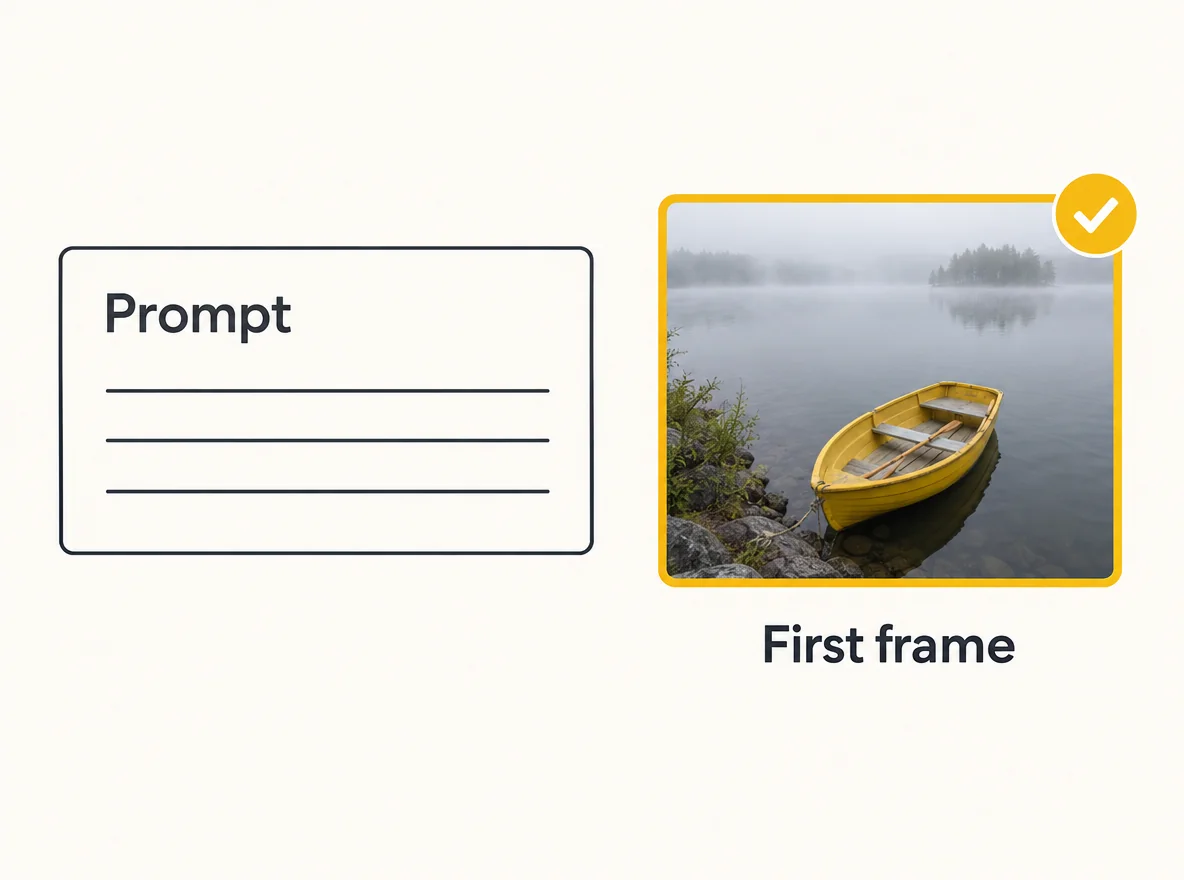
Step 1: Choose Your Starting Material
Start with a prompt, a still, mixed reference files, or a video to edit. Select the mode that matches your material.
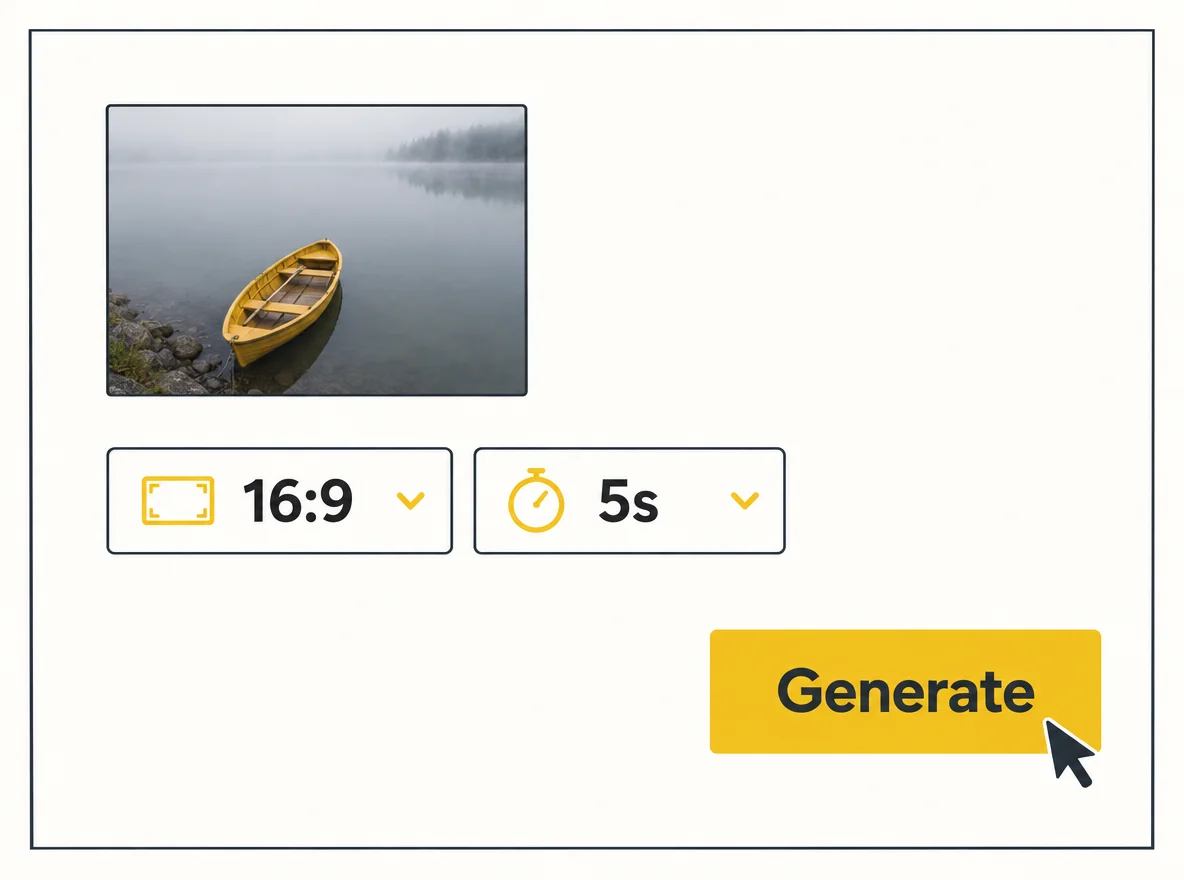
Step 2: Set the Shot and Generate
Describe the action and camera move. Choose the available output settings for your mode, confirm your inputs, and select Generate.
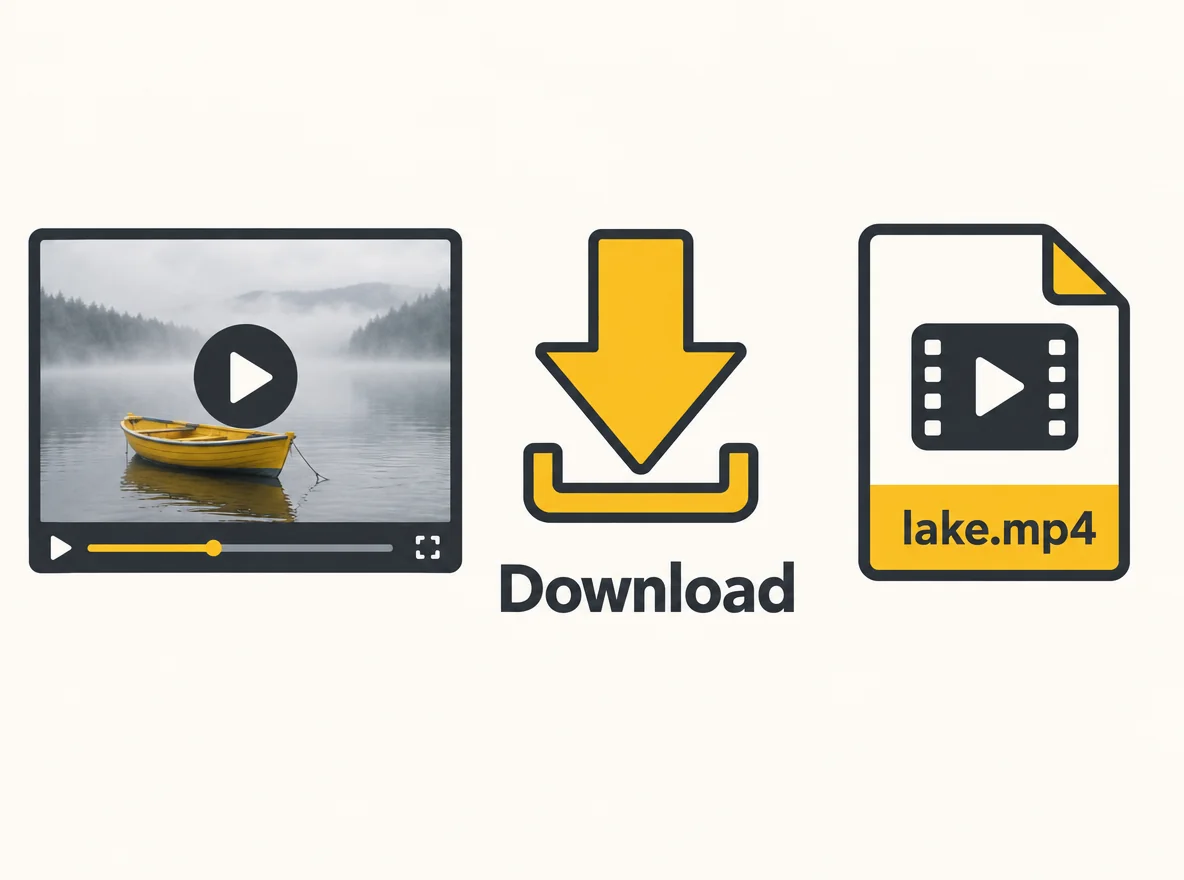
Step 3: Download and Save Your Video
Play the finished clip and check the picture and sound. Select Download to save the video for review or editing.
Magi-2 vs. Magi-2 Preview
Compare the two releases by starting material, output resolution, sound, and how much action fits in one clip.
Model
Audio
Output resolution
Clip duration
Starting material
MAGI-2
Native synchronized audio, with a sound setting for text and image generation
1080p output from the flagship pipeline
Up to 30 seconds per clip. Text and image generation offer 4 to 30 seconds.
Text, first frame with optional last frame, or mixed references
MAGI-2 Preview
Sound is generated alongside video in the published workflow
Up to 1080p with the refiner
Fixed at 10 seconds in the published inference workflow
Text or one first-frame image
This tool is for the flagship MAGI-2. MAGI-2 Preview is listed for comparison.
Magi-2 Use Cases for Short Video Work
Use these starting points to plan a line reading, a product reveal, a cut between shots, or a revision to a piece of footage.
Rehearse a Dialogue Scene
Start with a short exchange for two people in a quiet location. Assign one line to each speaker and leave a beat for the reaction shot. A brief held reaction after the second line gives you a dialogue beat you can cut into a longer scene.
The video couldn't be played. Try again.
Reveal a Product from a Still
Choose a clean photo that shows the shape and label of a bottle. Animate a slow rotation toward the front. If you add an ending photo, match the light from the opening frame. The slow turn ends with a readable label for a product page or a pitch to the shoot team.
The video couldn't be played. Try again.
Test a Cut Across Two Angles
Use a wide view of a café and a close view of the table to plan a two-shot sequence. Give the cut a clear action, such as a cup touching the table. The cup landing gives the two angles a common point of action and sound to carry across the cut.
The video couldn't be played. Try again.
Revise an Existing Color Choice
Start with a clip whose framing already works. Ask for a change to one identifiable item, such as the color of a jacket, and describe where it enters the shot. The changed item gives you a revised insert for the same sequence while preserving the framing in your brief.
Magi-2 Pricing for One-Time Credits
Choose a credit pack with a one-time purchase. Your credits do not expire.
Find answers about choosing a version, setting the clip length and sound, preparing references, editing footage, and buying credits.
Which Magi-2 version does this tool use?
It uses the flagship MAGI-2. The MAGI-2 Preview research release is a separate model with a fixed 10-second generation length in its published workflow. Use the comparison above to match the version to the material you plan to start with.
How long is a Magi-2 video, and what size is it?
When you start from text or a still image, Magi-2 can make 1080p video at 25 frames per second with a duration of 4 to 30 seconds. The aspect ratio sets the shape of that frame. Choose the shape for where the clip will appear, such as 9:16 for a tall placement.
Can I generate a clip without sound?
Yes. Turn off Generate sound in a mode with that setting. A silent clip is useful when you plan to add a voice-over or music in your editor. If you want sound to follow the on-screen action, leave it on and describe which sounds should happen when.
Do I have to upload both a first and a last frame?
The first image is required for Image to Video. Add the last image when the final view matters to the next shot or layout. When you supply only a first frame, you can still describe how you want the action and camera to finish.
What if my reference files compete with each other?
Keep the strongest input for each job and describe that job in the prompt. For example, use one still for wardrobe and a clip for movement. The 20-item total still has separate caps for images, videos, and audio, so you cannot fill all 20 slots with one kind of file.
Can I ask for one change to an existing video?
Yes. Choose the editing workflow and supply the clip. Describe the specific change and any detail that should carry through, then review the surrounding frames for unintended changes before using the result.
How do I buy credits for Magi-2?
Choose a credit pack as a one-time purchase. The credits do not expire, so you can buy a pack and use its balance across separate projects. See the pricing page to compare the three packs and their prices.
Create Your First Magi-2 Video
Start with one shot and a clear action. You can refine the camera and sound after you review the first result.